Permissions
Permissions allow Shopify store owners to control which settings WordPress administrators can modify. This is useful for agencies managing multiple WordPress sites or when you want to enforce specific configurations.
How Permissions Work
The permission system works in one direction:
Shopify App (Master)
        ↓
Controls what WordPress can edit
        ↓
WordPress Plugin (Restricted)
Key points:
- Permissions are set in the Shopify App
- WordPress plugin reads permissions via API
- Locked settings show a yellow warning banner
- Changes to locked fields are silently ignored
Available Permissions
| Permission | Controls | Default |
|---|---|---|
| Sync Settings | Auto-sync, image sync, metafield sync, post types | Enabled |
| Blogs | Blog routing rules and mappings | Enabled |
| Hreflangs | Multilingual hreflang configuration | Enabled |
| Meta Fields | WordPress Core, Yoast, Rank Math, ACF sync | Enabled |
| Authors | Author mapping and display names | Enabled |
| Files & Media | File uploads, WebP conversion, allowed types | Enabled |
| Content Processing | URL rewriting, custom HTML tags | Enabled |
| Redirections | Smart redirections management | Enabled |
| Advanced | Robots.txt, Gutenberg blocks settings | Enabled |
Admin Access Control
The Admin Access Control feature allows you to restrict who can modify Wash settings in WordPress, beyond the standard WordPress roles.
Settings Admin Only
When enabled, only WordPress users with the manage_options capability (administrators) can view and modify Wash settings. Non-admin users will see all settings in read-only mode with a "View Only Mode" notice.
| Setting | Default | Description |
|---|---|---|
| Restrict to Administrators Only | Off | Only admins can modify settings |
| Allowed Usernames | Empty | Comma-separated list of users who always have access |
Allowed Usernames
You can specify a comma-separated list of WordPress usernames who should always have access to modify settings, regardless of their role or the "Administrators Only" setting.
Example:admin, john, editor_jane
This is useful when:
- You want to give a specific editor access to settings
- You need to allow a contractor temporary access
- You have multiple admins but want to restrict access to specific people
WordPress Behavior
When a user doesn't have permission to modify settings:
- Notice Banner — Yellow "View Only Mode" notice appears at the top
- Read-Only Fields — All form inputs are grayed out and disabled
- Hidden Submit — Save buttons are hidden
- Protected Form — Form submission is blocked even if CSS is bypassed
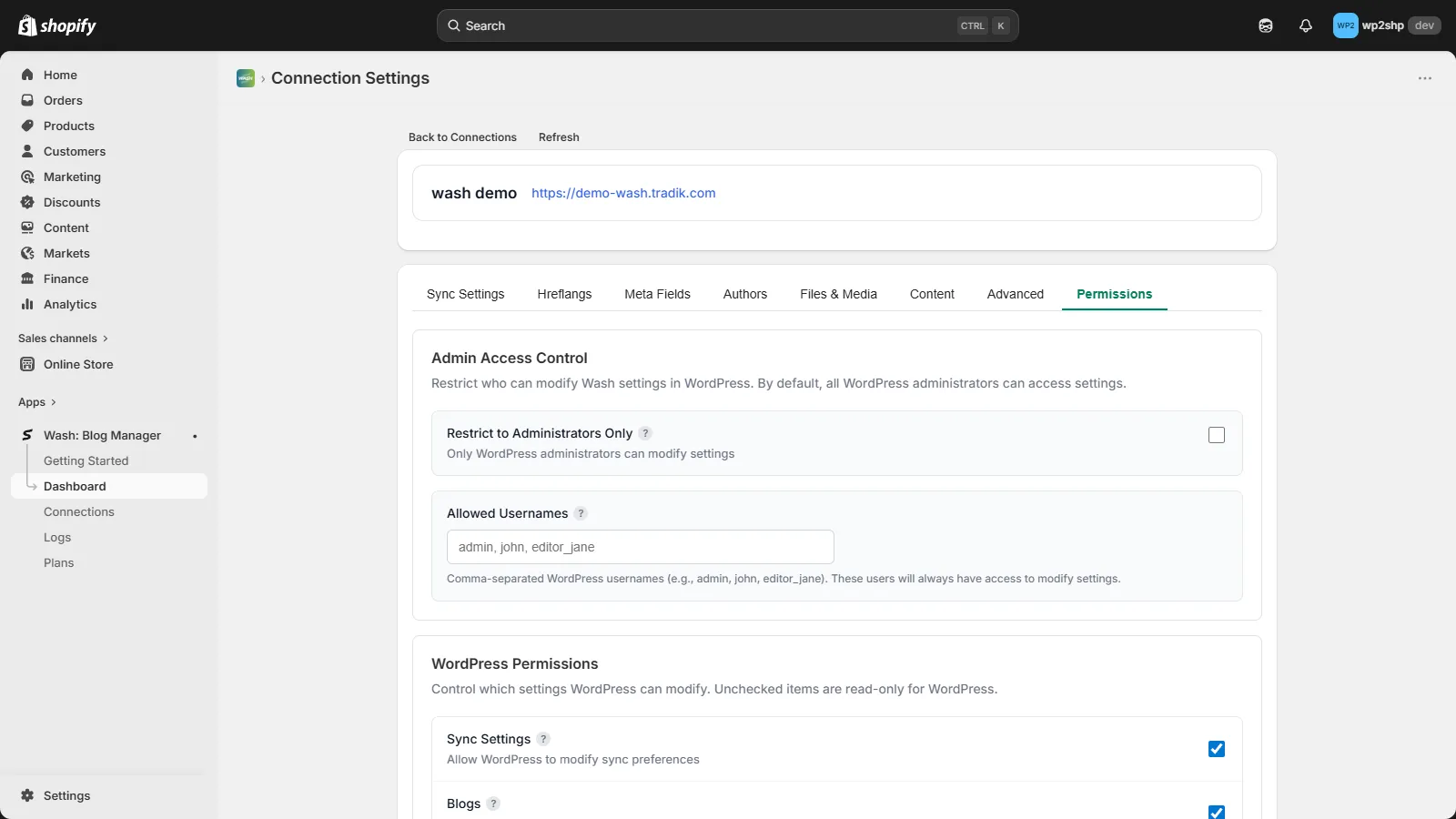
Setting Permissions in Shopify
Step 1: Open Connection Settings
- Go to Shopify Admin → Apps → Wash
- Click on your WordPress connection
- Navigate to Settings tab
- Select Permissions sub-tab
Step 2: Configure Admin Access
At the top of the Permissions tab, configure Admin Access Control:
- Restrict to Administrators Only — Toggle to limit access to WP admins
- Allowed Usernames — Enter specific usernames that should have access
Step 3: Configure Section Permissions
Toggle each section permission on or off:
- On (enabled) — WordPress can modify these settings
- Off (disabled) — Settings are locked in WordPress
Step 4: Save Changes
Click Save Changes. WordPress will receive updated permissions on next page load (cached for 5 minutes).
WordPress Plugin Behavior
Locked Tab Indicators
When a permission is disabled:
- Tab shows a lock icon 🔒
- Hovering shows "Locked by Shopify Admin"
- Yellow banner appears at the top of the tab
- All form inputs are disabled
- Save button is hidden
Permission Cache
WordPress caches permissions for 5 minutes to reduce API calls. To force refresh:
- Go to Wash Settings in WordPress
- Click the refresh icon next to your plan name
- This clears both plan info and permissions cache
Use Cases
Agency Managing Multiple Sites
Lock critical settings to prevent clients from breaking sync:
- Disable: Sync Settings, Advanced
- Enable: Authors, Content Processing
Enforcing SEO Standards
Prevent changes to SEO-related settings:
- Disable: Meta Fields, Hreflangs
- Enable: Everything else
Content Team Access
Allow content editing but lock technical settings:
- Disable: Sync Settings, Advanced, Redirections
- Enable: Authors, Content Processing
Restricting to Specific Users
Allow only specific team members to modify settings:
- Enable: Restrict to Administrators Only
- Allowed Usernames:
lead_dev, content_manager - This way, only
lead_devandcontent_managercan change settings, even if other admins exist
API Details
Permission Endpoint
WordPress fetches permissions from:
GET /api/settings-permissions
Headers:
  X-Wash-Key: {api_key}
  X-Wash-Timestamp: {unix_timestamp}

Response:
{
  "success": true,
  "permissions": {
    "canEditSync": true,
    "canEditBlogs": false,
    "canEditHreflangs": true,
    "canEditMeta": true,
    "canEditAuthors": true,
    "canEditFiles": true,
    "canEditContent": false,
    "canEditRedirections": true,
    "canEditAdvanced": false,
    "settingsAdminOnly": true,
    "settingsAllowedUsers": "admin, john"
  }
}
Permission Field Mapping
| API Field | Database Field | WordPress Tab |
|---|---|---|
canEditSync | canWpEditSync | Sync Settings |
canEditBlogs | canWpEditBlogs | Blogs |
canEditHreflangs | canWpEditHreflangs | Hreflangs |
canEditMeta | canWpEditMeta | Meta Fields |
canEditAuthors | canWpEditAuthors | Authors |
canEditFiles | canWpEditFiles | Files & Media |
canEditContent | canWpEditContent | Content Processing |
canEditRedirections | canWpEditRedirections | Redirections |
canEditAdvanced | canWpEditAdvanced | Advanced |
settingsAdminOnly | settingsAdminOnly | User access control |
settingsAllowedUsers | settingsAllowedUsers | User access control |
Permissions vs Plan Features
Permissions are different from plan-based feature locks:
| Aspect | Permissions | Plan Features |
|---|---|---|
| Controlled by | Shopify Admin | Subscription plan |
| Purpose | Access control | Feature availability |
| Banner color | Yellow | Green |
| Can be changed | Anytime | By upgrading plan |
Priority: If both are locked, permission lock takes precedence (shows yellow banner).
Troubleshooting
Settings Not Locking
- Check permission is disabled in Shopify App
- Click refresh button in WordPress to clear cache
- Wait 5 minutes for cache to expire automatically
- Verify API connection is working
Can't Save Settings
- Check for yellow "Locked by Shopify Admin" banner
- Ask Shopify admin to enable permission
- Verify you're editing the correct tab
Permission Changes Not Reflecting
- Clear WordPress transient cache
- Use refresh button next to plan badge
- Check Shopify App saved successfully